

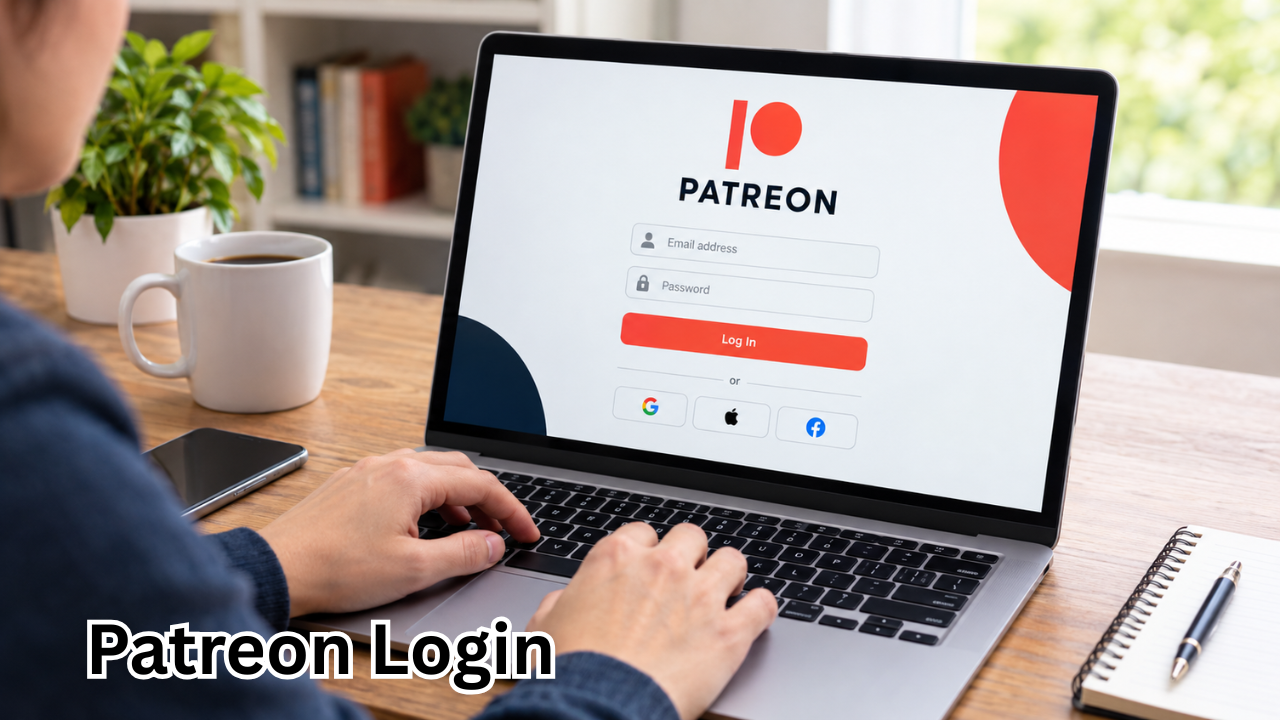
Patreon has become a popular platform for connecting creators with the people who support their work. Whether you follow an artist, writer, podcaster, musician, educator, or another type of creator, your Patreon account can give you access to exclusive posts, communities, videos, podcasts, downloads, and other member benefits.
For many users, the process begins with a simple Patreon login. However, things can become frustrating when you forget your password, do not receive a verification email, use the wrong email address, or cannot remember whether you originally signed up with Google, Apple, or another login method.
The good news is that most Patreon login problems are relatively easy to solve. This guide explains how to access your account, what to do when your password does not work, how passwordless login works, and how to improve your account security.
What Is Patreon?
Patreon is a membership and creator platform that allows fans to support creators and receive access to content or other benefits. Depending on the creator, members may find exclusive videos, podcasts, artwork, writing, courses, music, recipes, community discussions, and more. Patreon also allows creators to sell certain content or products directly to their audiences.
For members, the platform provides a central place to manage creator memberships and discover content. After logging in, users can access content associated with the creators they support and manage their account settings.
Because your memberships and account information are connected to your Patreon profile, keeping your login details secure is important.
How to Complete a Patreon Login
If you already have a Patreon account, signing in should only take a few moments.
Generally, you need to visit Patreon, choose the login option, and enter the credentials or sign-in method associated with your account.
Depending on how your account was created, your login experience may involve a password, an email verification code, or a third-party authentication method.
A typical login process looks like this:
- Open the official Patreon website or app.
- Select the option to log in.
- Enter the email address associated with your account.
- Enter your password if your account uses one.
- If Patreon requests additional verification, follow the instructions sent to your email or provided by your authentication method.
- Once verification is complete, you should be taken to your account.
If you are using a mobile device, make sure you have the latest version of the Patreon app. Patreon currently provides apps for both iOS and Android devices.
Patreon Login Methods You May Encounter
Not every Patreon account is accessed in exactly the same way. Your available login method depends partly on how you originally created the account.
Here is a quick overview:
| Login Method | What You May Need | Common Issue |
|---|---|---|
| Email and password | Account email and password | Forgotten password |
| Passwordless login | Account email and verification code | Code not received |
| Google sign-in | Google account | Wrong Google account selected |
| Apple sign-in | Apple ID | Hidden email or different Apple account |
| Device verification | Access to account email | Verification message missing |
| Two-factor authentication | Phone or authenticator | Code unavailable |
Understanding which method you originally used can save time. For example, if you created your Patreon account through Google, repeatedly trying different passwords may not solve the problem because the account may not have been created with a traditional Patreon password.
How Patreon Passwordless Login Works
One useful Patreon feature is passwordless login.
Patreon allows eligible users creating free accounts to sign up using their name and email address without creating a password immediately. When they return to log in, Patreon can send a verification code to their email.
This can be convenient if you do not want another password to remember.
The process is straightforward:
- Enter the email address connected to your Patreon account.
- Check your inbox for the verification message.
- Enter the code when prompted.
- Complete the login process.
If you do not see the email, check your spam, junk, or promotional folders before requesting another code.
Patreon also says that users can create a password later through their account settings after they are successfully logged in.
Forgot Your Patreon Password? Here’s What to Do
Forgetting a password is one of the most common reasons someone searches for Patreon login help.
If your account uses a password and you cannot remember it, you can request a password reset.
According to Patreon’s current help guidance, you need to be logged out before requesting a password reset. Patreon then sends a reset email containing instructions for creating a new password.
Try these steps:
- Log out of Patreon if you are currently signed in.
- Select the password reset option.
- Enter the email address associated with your Patreon account.
- Check your inbox for the password reset message.
- Follow the reset link.
- Create a new, secure password.
- Return to Patreon and log in with the updated password.
If you use a password manager, remember to update the saved password after changing it.
What If You Don’t Receive the Password Reset Email?
Sometimes the reset email does not appear immediately.
Before assuming something is wrong with your account, check the following:
- Look in your spam or junk folder.
- Check your email’s Promotions or filtered folders.
- Make sure you entered the correct email address.
- Check whether your email provider has blocked Patreon messages.
- Request another reset email.
- Make sure you are checking the inbox associated with your Patreon account.
Patreon specifically recommends checking for messages from its password-related email address and adding it to your contacts or safe list if necessary.
If you originally used Google, Apple, or another supported sign-in method, try that method instead of attempting to reset a password you may never have created.
Don’t Remember Which Email You Used?
Another common problem is remembering the Patreon account but forgetting the email address connected to it.
If you have several email addresses, you can try them individually through the password recovery process. Patreon says that receiving the reset email can help confirm which email address is associated with the account.
You can also check your Google, Apple, or other account settings if you believe you created the Patreon account using a third-party login.
If you have previously received Patreon receipts, notifications, or membership messages, searching your email history for “Patreon” may also help identify the correct inbox.
Patreon Login With Google or Apple
Some users do not access Patreon using a traditional password.
If you created your account using a third-party authentication option, you should use the same account when logging in.
For example, if you originally registered through Apple, selecting Apple sign-in is generally more appropriate than trying random passwords.
Apple’s sign-in system can also allow users to hide their email address. In that situation, the email associated with Patreon may look different from the personal email address you normally use. Patreon confirms that Apple can anonymize the email field through its “Hide My Email” functionality.
This is one reason it is useful to remember which authentication method you selected when you first joined.
Device Verification During Patreon Login
Patreon may sometimes ask you to verify your device as an additional security measure.
If this happens, you may receive a verification message by email. Patreon recommends checking your inbox, spam folder, and email filters if the message does not arrive.
There is another important detail: if you request several verification emails, older links may become unusable. Patreon recommends using the most recent verification link and completing verification on the same device you are trying to use to access your account.
If a verification link appears to have expired, try requesting a fresh one rather than repeatedly clicking an older message.
What to Do When Your Two-Factor Code Doesn’t Work
Two-factor authentication adds another layer of protection to your account, but it can also create problems when you lose access to your phone or authenticator.
If you use SMS authentication and the code is not arriving, Patreon recommends basic troubleshooting such as restarting your phone and trying again.
For an authenticator app, you may need the backup recovery codes that were provided when two-factor authentication was enabled.
If you no longer have access to your authenticator or backup codes, contacting Patreon Support may be necessary.
Never share your verification code or recovery codes with another person claiming to be helping you access the account.
Patreon Login Problems on Mobile
Many Patreon members use their smartphones rather than a desktop browser.
If the Patreon app is not allowing you to log in, try these basic troubleshooting steps:
- Update the Patreon app.
- Close and reopen the application.
- Check your internet connection.
- Try switching between Wi-Fi and mobile data.
- Confirm that you are using the correct account.
- Try signing in through a web browser.
- Restart your phone.
- Check whether the problem continues after updating the app.
Patreon maintains separate guidance for using its mobile app, and its current member experience includes areas for browsing and accessing content from creators you support.
If the browser version works while the app does not, the issue may be related to the app rather than your account credentials.
How to Keep Your Patreon Account Secure
A successful login is only part of account security. Your Patreon account may contain membership information, payment-related details, private messages, and access to content, so basic security habits are worthwhile.
Consider following these practices:
Use a Strong, Unique Password
If your Patreon account uses a password, avoid using the same password across multiple websites.
A unique password makes it harder for a security problem on another service to affect your Patreon account.
Enable Two-Factor Authentication
Two-factor authentication can provide additional protection beyond your password.
If someone obtains your password, an additional verification step can make unauthorized access more difficult.
Be Careful With Login Links
Avoid entering your Patreon credentials into unfamiliar websites.
When searching for Patreon login help, advertisements and third-party pages may appear alongside legitimate information. Make sure you are accessing the official Patreon website or official Patreon Help Center before entering sensitive information.
Don’t Share Verification Codes
A legitimate support interaction should not require you to casually hand over a one-time login code to another person.
Treat verification codes as sensitive information.
What If You Think Your Patreon Account Was Hacked?
If you believe someone has accessed your account without permission, act quickly.
Patreon recommends requesting a password reset if you suspect your account has been compromised. It also recommends changing passwords on other services if you reused the same password elsewhere.
You should also review your account for anything unusual.
Look for:
- Unexpected account changes
- Unknown login or verification activity
- Changes to your email address
- Memberships you do not recognize
- Unusual payment activity
- Messages or actions you did not make
If you cannot regain access through the normal login or password recovery process, Patreon Support may need to verify your identity before helping you recover the account.
What If You Lost Access to Your Email?
Losing access to the email address connected to Patreon can make account recovery more complicated.
Email access may be required for password resets or device verification. Patreon says users who can no longer access their account email should contact its Support team, which may require identity verification before taking action.
If you are still logged into Patreon on another device, it may be possible to update your email address through account settings. Patreon currently explains that changing an email requires confirmation through the new email address.
For this reason, it is a good idea to keep your account email current while you still have access.
Common Patreon Login Problems at a Glance
If you are trying to troubleshoot an account, the following checklist can help you identify the problem quickly:
- Forgot password: Use the password reset process.
- No reset email: Check spam, filters, and the correct inbox.
- No verification code: Check your email folders and request a new code.
- Used Apple or Google: Try the same sign-in method you originally selected.
- Two-factor problem: Use your available recovery method or contact support.
- Lost email access: Contact Patreon Support for account recovery.
- App not working: Update the app and try logging in through a browser.
- Possible account compromise: Reset your password and secure reused passwords.
Frequently Asked Questions About Patreon Login

How do I log in to Patreon?
Open the official Patreon website or app and choose the login option. Depending on how you created your account, you may use an email and password, a third-party sign-in option, or an email verification code.
Can I log in to Patreon without a password?
Yes. Patreon supports passwordless login for eligible users. Instead of entering a password, you may receive a verification code through email and use that code to access your account.
Why am I not receiving my Patreon login email?
First, check your spam, junk, and promotional folders. Make sure you are checking the correct email address and consider adding Patreon email addresses to your safe list. If the problem continues, request another email or contact Patreon Support.
What should I do if I forgot my Patreon password?
Log out of Patreon and use the password reset option. Patreon will send a reset link to the email associated with your account. Follow that link to create a new password.
Can I use Google or Apple to log in to Patreon?
Yes, depending on how your Patreon account was created and which authentication options are available to you. If you originally used Google or Apple, try signing in through the same service rather than creating a new Patreon account.
What should I do if my Patreon account was hacked?
Start by attempting a password reset and use a new password that you do not use on other websites. If you cannot recover the account or notice suspicious activity, contact Patreon Support and be prepared to verify your identity.
Final Thoughts
A Patreon login should normally be a quick process, but forgotten passwords, missing emails, device verification, and third-party sign-in methods can occasionally make access more complicated.
The best approach is to identify how your account was originally created before trying multiple recovery methods. If you use passwordless login, look for the verification code in your email. If you created a password, use the official reset process when necessary. And if you registered through Google or Apple, use the same authentication method when returning to your account.
Most importantly, keep your email address up to date, use a unique password, protect your verification codes, and consider using two-factor authentication. These simple steps can make your Patreon experience more secure while helping you regain access more easily if something goes wrong.
Also Read : Name Generator: How to Find the Perfect Name for Any Purpose









Leave a Reply