

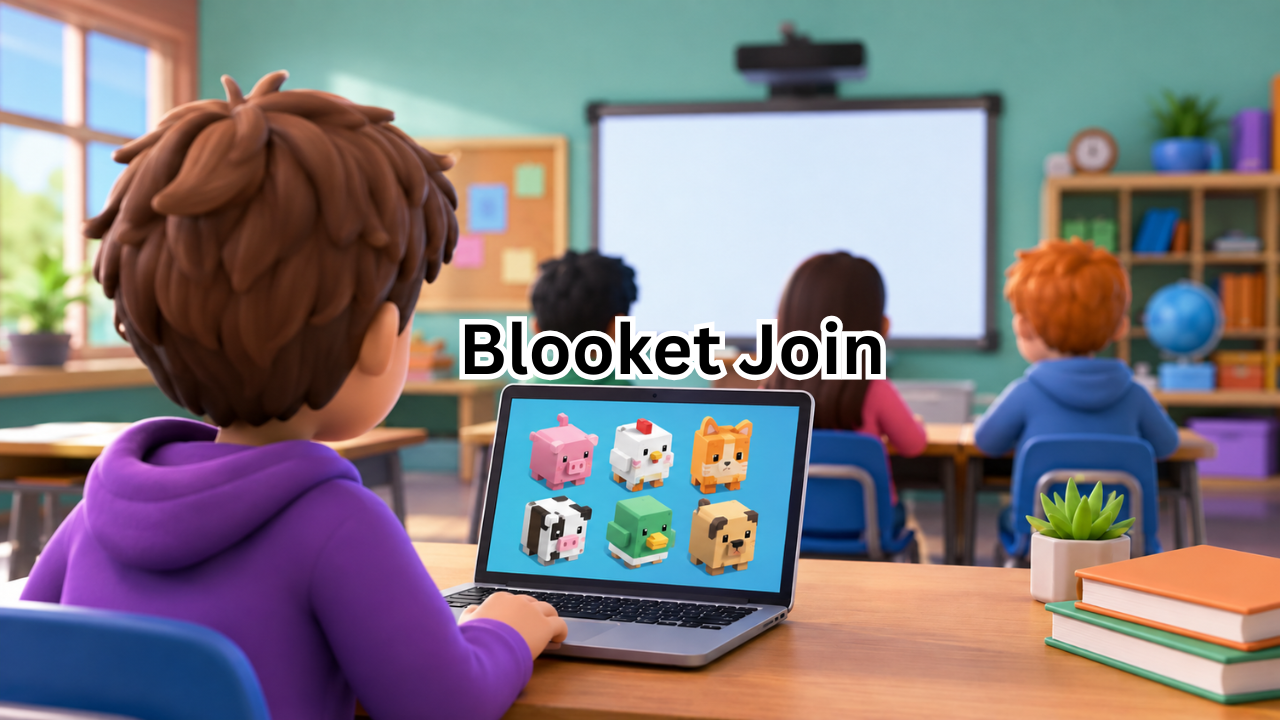
If you are searching for blooket join, you probably want to enter a live classroom game quickly without getting stuck on the login screen or wondering where the game code goes. The good news is that joining a Blooket game is usually simple and does not require a student account.
Blooket official website is an educational gaming platform that combines quiz questions with interactive game modes. Teachers can host games, while students join using a game code, QR code, or shared join link.
This guide explains exactly how Blooket join works, what you need before entering a game, common problems you may encounter, and how students can get the most out of the experience.
What Is Blooket Join?
Blooket join refers to the process students use to enter a live Blooket game hosted by a teacher or another game host.
Unlike some educational platforms, students generally do not need to create an account simply to participate in a live game. The host creates the session and provides participants with a game code, QR code, or direct join link.
Once you enter the game, you normally choose a nickname and select a Blook before waiting for the host to begin.
Blooket is designed around question sets and game modes, making ordinary quizzes feel more like competitive games. The platform’s official site describes it as an educational gaming service that supports both live and asynchronous play.
How to Join a Blooket Game
Joining a live game generally takes only a few steps.
Step 1: Get the Game Code
Ask your teacher or host for the current Blooket game code.
The code belongs to a specific live session, so an old code may no longer work. If you do not have a code, ask the person hosting the game to display or send it again.
Step 2: Open the Blooket Join Page
Go to the Blooket play page:
The page provides a field where you can enter the Game ID.
Step 3: Enter the Game ID
Type the game code exactly as provided by your teacher.
Check the numbers carefully before submitting. A single incorrect digit can prevent you from entering the session.
Step 4: Enter Your Nickname
Depending on the host’s settings, you may be able to enter your own nickname. Some hosts can enable random names instead, in which case Blooket generates a nickname for you.
If you are participating in a school activity, using an appropriate name makes it easier for your teacher to identify you.
Step 5: Choose Your Blook
After joining, you may be asked to choose a Blook while waiting for the game to begin.
Your selected Blook is essentially your in-game character. It adds a collectible and visual element to the experience without changing the basic process of answering questions.
Step 6: Wait for the Host
Once you are inside the lobby, wait for the teacher or host to start the game.
Some games may allow students to join after the game has started if the host has enabled the late-join option.
Three Ways Students Can Join Blooket
The game code is not the only way to enter a Blooket session. Official Blooket guidance identifies three common joining methods.
| Join Method | What You Need | Best For |
|---|---|---|
| Game Code | Current Game ID | Traditional classroom play |
| QR Code | Phone or tablet camera | Fast mobile joining |
| Join Link | Shared clickable link | Online or virtual classes |
A teacher can provide a game ID, QR code, or join link after creating a game.
This flexibility is particularly useful when students are using different devices.
Do You Need a Blooket Account to Join?
No. A student account is not normally required to join a live Blooket game.
According to Blooket’s student guidance, students can enter a live game using the Game ID, QR code, or join link without logging in.
However, having an account can provide additional features. For example, logged-in students can use their own Blooks and access features such as stats and solo gameplay.
This means there is an important difference between joining a game and creating a Blooket account. If your teacher simply wants you to participate in today’s quiz, you may not need to register.
What Happens After You Join?
After successfully entering a Blooket session, you will normally wait in the game lobby.
The exact experience can vary depending on the selected game mode and host settings. Still, the basic process is straightforward:
- Enter the live session.
- Choose or receive a nickname.
- Select a Blook when prompted.
- Wait for the host.
- Read the instructions.
- Answer questions during the game.
- Follow the rules of the selected game mode.
- Review your results when the session ends.
The competitive game mechanics can make students more engaged than they might be during a traditional question-and-answer activity.
Why Teachers Use Blooket for Learning
Blooket is more than a simple online quiz. It gives teachers a way to combine question sets with different game experiences.
Teachers can find existing question sets, create their own, and host games using different modes. Blooket’s official teacher documentation explains that question sets form the foundation of its games, while hosts can select an appropriate game mode and adjust settings before starting.
This can be useful for:
- Reviewing lessons
- Practicing vocabulary
- Testing mathematical skills
- Reinforcing science concepts
- Preparing for assessments
- Conducting quick classroom activities
- Making revision sessions more interactive
The platform also provides reports that can help teachers understand student performance after a game.
Common Blooket Join Problems and Solutions
Even though the joining process is simple, students sometimes encounter problems.
The Game Code Does Not Work
First, confirm that you have the current code.
A Blooket Game ID is connected to a particular session. If the host has created a new game, an older code may not take you to the correct lobby.
Ask the teacher to display the code again and enter it carefully.
The Game Has Already Started
Some hosts allow late joining, while others may not.
If you cannot enter after the game has started, ask the host whether late joining is enabled. Blooket provides a setting that allows hosts to control whether students can join after gameplay begins.
You Entered the Wrong Name
If your name is incorrect, ask the host what options are available. The ability to choose a nickname depends on the settings selected for the game.
The Join Page Is Not Loading
Check your internet connection and refresh the page.
You can also try:
- Opening the page in another browser
- Closing unnecessary browser tabs
- Checking whether your school network is blocking the site
- Re-entering the Blooket join page
- Asking the teacher whether other students are experiencing the same problem
You Cannot Find a Game Code
A Game ID is generated by the host after the game is prepared. If you are a student, you generally cannot generate a live classroom code yourself simply by visiting the join page.
Ask the teacher or host to provide the current Game ID, QR code, or join link.
Blooket Join on Phones and Tablets
Blooket can also be accessed from mobile devices.
If your teacher displays a QR code, you can scan it using your device’s camera. This can be faster than manually typing a Game ID.
A shared join link is another convenient option, especially when a class is taking place online. Blooket specifically supports joining through a shared link.
For the smoothest experience, make sure your device has a stable internet connection before the game starts.
Blooket Join vs. Blooket Homework
It is important to distinguish a live game from a homework assignment.
For a live game, the host typically gives students a Game ID, QR code, or join link. For Blooket homework, the teacher can provide a homework link or QR code that takes students directly to the assignment.
Homework also works differently because students can complete an assigned activity independently rather than waiting for a teacher to start a live session.
Blooket’s current homework system allows students to select from available solo game modes for an assignment, depending on the assignment setup.
Tips for a Better Blooket Experience
If you regularly participate in Blooket games, a few simple habits can make the experience easier.
Join Before the Game Starts
Do not wait until the final seconds to enter the code. Joining early gives you time to solve connection or nickname problems.
Double-Check the Code
Game IDs can be easy to mistype. Carefully compare the digits with the code displayed by your teacher.
Listen to the Instructions
Different game modes can have different objectives. Understanding the rules before answering questions can make a significant difference.
Use an Appropriate Nickname
Your nickname may be visible to your teacher and classmates. Choose something recognizable and suitable for the classroom.
Focus on Accuracy
Blooket is competitive, but the educational purpose still matters. Try to understand why an answer is correct rather than simply rushing through every question.
Can You Play Blooket Without a Teacher?
There are multiple ways to use Blooket, so a teacher is not necessarily required for every type of gameplay.
For live classroom games, someone needs to host the session and provide the joining information. However, Blooket also supports independent solo gameplay, where students can find a question set and select a game mode themselves.
This makes the platform useful for both classroom activities and individual practice.
Students can browse question sets by subjects, grade levels, skills, and other criteria, then use an available set for solo play.

Frequently Asked Questions About Blooket Join
1. What is the Blooket join code?
The Blooket join code, also called a Game ID, is the code used to enter a live game hosted by a teacher or another host. You receive the current code from the person running the game.
2. Where do I enter a Blooket code?
Go to the Blooket play page and enter the Game ID in the available field. The official Blooket play page is designed for joining games.
3. Do students need an account to join Blooket?
No. Students can generally join live games without creating an account. An account is useful if you want access to additional features such as personal Blooks, statistics, and solo gameplay.
4. Can I join Blooket with a QR code?
Yes. Teachers can display a QR code that students scan with a compatible device. The QR code provides another way to enter the game without manually typing the Game ID.
5. Why can’t I join a Blooket game?
The code may be incorrect, expired, or connected to a session that does not allow late joining. Check the Game ID and ask the host whether the game is still accepting participants.
6. Can I play Blooket without joining a live game?
Yes. Blooket also supports solo gameplay and homework activities. Students can use question sets for independent practice instead of joining a live classroom session.
Final Thoughts
The blooket join process is designed to be quick and accessible. In most cases, students simply need the current Game ID, a QR code, or a join link from their teacher. From there, they can enter their nickname, choose a Blook, and wait for the game to begin.
The biggest advantage is that students do not normally need an account just to participate in a live game. That keeps the entry process simple while still allowing account holders to access additional features.
If you are having trouble joining, start with the basics: confirm the current code, check your internet connection, make sure the host is still accepting players, and use the official Blooket play page. With those steps covered, joining a classroom game should take only a few moments.
Also Read : What Is New in Gaming Technology Jogametech? Latest Trends Changing the Way We Play







Leave a Reply