

Padlet has become a popular digital collaboration tool for people who want to organize ideas, share resources, and work together in one convenient online space. Whether you are a student preparing a project, a teacher planning a lesson, or a professional managing a team, Padlet offers a simple way to collect information and present it visually.
Unlike traditional documents that mainly focus on paragraphs and pages, Padlet allows users to combine text, images, videos, links, audio, and other content on a shared digital board. This makes it easier to exchange ideas, organize information, and collaborate without relying on long email conversations or scattered files.
Another reason people use Padlet is its flexibility. You can create a board for brainstorming, build a collection of learning materials, share project updates, or design an interactive classroom activity. Its visual layout helps make information more accessible and engaging.
In this guide, you will learn what Padlet is, how it works, its main features, pricing considerations, and the practical ways students, teachers, businesses, and individuals can use it.
What Is Padlet?
Padlet is an online visual collaboration platform that allows people to create digital boards and canvases for collecting, organizing, and sharing content. Users can add posts containing written notes, photographs, videos, documents, website links, and other supported media.
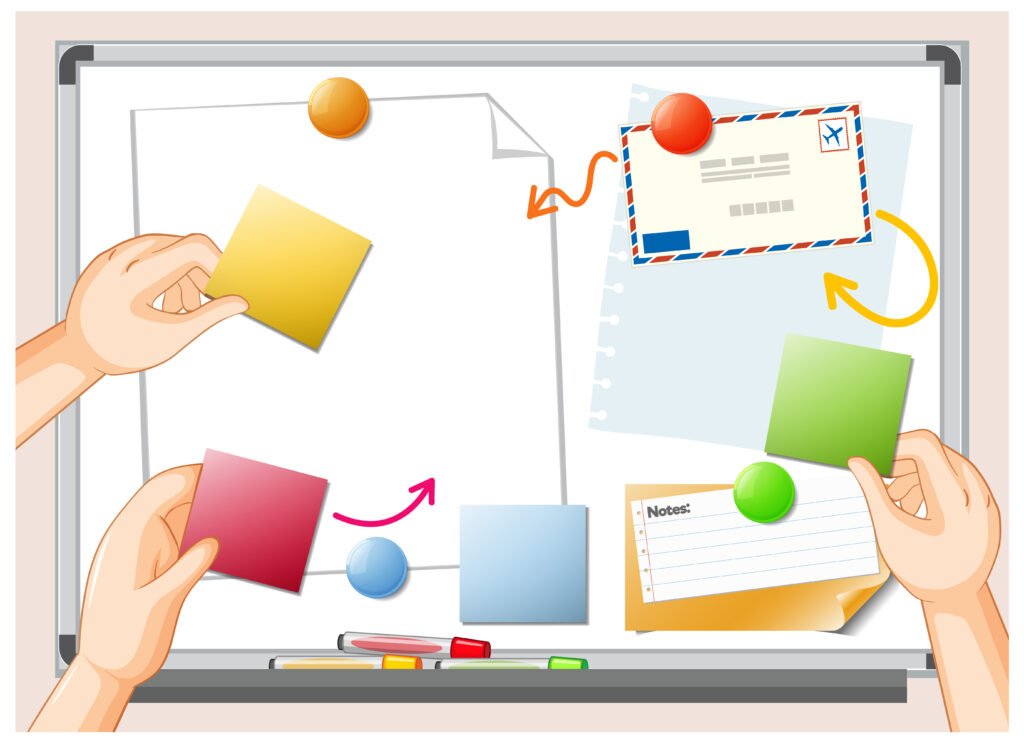
Think of it as a shared digital wall where everyone can contribute ideas. Instead of writing everything in one large document, you can arrange individual posts in a visual space and organize them around a common topic.
For example, a teacher might create a board where students post answers to a discussion question. A marketing team could use one to collect campaign ideas, while a student might organize research sources for an assignment.
Padlet offers both collaborative boards and a canvas-style workspace called Sandbox. These formats make it useful for activities ranging from simple information sharing to interactive lessons and visual planning. You can explore the platform on the official Padlet website.

How Does Padlet Work?
Padlet works through a straightforward process: create a board, add content, adjust the settings, and share it with other people.
You generally do not need advanced technical knowledge to get started. The platform provides customization options and different layouts so you can adapt your workspace to the activity you have in mind.
1. Create a Padlet Board
Start by visiting the Padlet website and signing in or creating an account. From your dashboard, select the option to make a new Padlet.
You can begin with a blank board, use a template, or explore the available creation options. Give your board a descriptive title so visitors immediately understand its purpose.
For example, a board titled “Environmental Science Project” is more informative than one called “My Board.”
2. Customize the Layout
Once your board is created, choose a suitable format and customize its appearance. Depending on the activity, you might prefer a free-form arrangement, a structured collection of posts, or a layout organized into sections.
You can also adjust elements such as the background, colors, and other display settings.
Keeping your design simple is often the best approach. A clean board makes important information easier to find and prevents visual clutter.
3. Add Your Content
Padlet supports a variety of content types. Users can create posts with text, images, links, videos, and supported file attachments.
This flexibility is particularly useful when a project requires more than written notes. For instance, students can combine photographs with explanations, while a business team can attach reference materials to individual ideas.
4. Share and Collaborate
When your board is ready, open the sharing settings to choose how other people can access it and what they are allowed to do.
Depending on the available settings, visitors may be able to read posts, comment, contribute new content, or help moderate the board. You can share access using a link and use other available sharing options, such as QR codes.
Before distributing a board, review its privacy and permission settings. A board intended for private classroom work should not automatically be made public.
For detailed instructions, consult the official Padlet getting-started guide.
Key Features of Padlet
Padlet offers several features that make it useful for personal organization, education, and group collaboration. The precise features available may depend on the account type, subscription, and settings.
Visual Content Organization
One of Padlet’s main strengths is its visual approach to organizing information. Instead of forcing every contribution into a conventional document, it lets users arrange content as individual posts.
This is helpful when collecting research, comparing ideas, planning projects, or displaying resources around a central theme.
Multimedia Support
Padlet is designed to accommodate different kinds of content. Depending on the supported file type and account limits, users can add:
- Text notes and descriptions
- Images and photographs
- Audio and video content
- Website links and embedded media
- Documents and other file attachments
Multimedia posts can make a board more informative and engaging. They also help users communicate ideas in different ways rather than depending entirely on written explanations.
Real-Time Collaboration
Multiple participants can contribute to a shared workspace when its permissions allow them to do so. This makes Padlet useful for group discussions, brainstorming sessions, and collaborative assignments.
Rather than collecting separate responses and combining them manually, a facilitator can ask everyone to contribute to the same board.
The result is a shared collection of ideas that participants can review and discuss.
Templates and Customization
Starting from scratch is not always necessary. Padlet provides templates and other creation options that can help users build a workspace more quickly.
Customization features also let users adapt the appearance and structure to their purpose. A project timeline, classroom discussion, and resource library do not need to look or function the same way.
Sharing and Export Options
Padlet boards can be shared with other people through supported sharing methods. The platform also provides options for presenting or exporting content, depending on the board and account settings.
These options are useful when someone needs to distribute learning resources, present collected ideas, or keep a record of a completed activity.
Sandbox for Interactive Activities
In addition to boards, Padlet offers Sandbox, a digital canvas designed for activities such as whiteboarding, lessons, and interactive exercises.
A canvas-style workspace can be especially useful for drawing, arranging visual elements, explaining concepts, and designing classroom activities. Visit the official Padlet Sandbox page for more information.
Benefits of Using Padlet
The main advantage of Padlet is that it provides a shared visual space for information that might otherwise be scattered across different applications.
Here are some of its most useful benefits.
1. Simple to get started: The basic process of creating a board and adding posts is straightforward. New users can begin with a blank board or a template rather than learning a complicated project management system.
2. Encourages participation: In a classroom or team meeting, people can contribute ideas to a common space. This can give quieter participants another way to express their opinions.
3. Supports different learning styles: The ability to combine text, images, videos, and other media makes it easier to present information in different formats.
4. Keeps resources together: Notes, links, documents, and visual references can be collected around one topic, helping participants find relevant information more easily.
5. Makes collaboration more flexible: People can contribute to shared activities without necessarily being in the same physical location. Access still depends on internet availability and the board’s permissions.
6. Offers flexible applications: Padlet can support education, professional projects, community activities, and personal organization rather than serving only one particular audience.
However, a shared board is not automatically a replacement for every productivity tool. Large projects involving complex deadlines, detailed task dependencies, or specialized reporting may require additional software.
Common Uses of Padlet
Padlet’s flexibility makes it suitable for a wide range of activities. The best setup depends on what you want participants to accomplish.
Padlet for Students
Students can use Padlet to organize research, prepare presentations, share study materials, and complete group assignments.
For example, a group researching climate change could create posts about renewable energy, rising temperatures, environmental policies, and possible solutions. Each member could contribute relevant sources and explain their findings.
Students may also use it to review concepts before an examination by building a shared collection of summaries, diagrams, and useful links.
Padlet for Teachers
Teachers can use Padlet to make lessons more interactive and encourage students to participate.
Some practical classroom ideas include:
- Brainstorming: Ask students to share their ideas before introducing a topic.
- Exit tickets: Have learners post one thing they understood and one question they still have.
- Group research: Assign different topics and let students contribute findings to a shared board.
- Resource sharing: Collect videos, articles, worksheets, and reference materials in one place.
- Creative projects: Invite students to combine images, written explanations, and other media in a presentation.
Teachers should consider student privacy, age-appropriate access, and moderation when selecting settings for classroom activities.
Padlet for Businesses and Teams
Business teams can use Padlet to gather ideas, share references, and organize information during collaborative projects.
A design team, for instance, could collect inspiration images and website links before beginning a new project. A marketing team might use a board to compare campaign concepts or gather feedback on proposed content.
Padlet can also help distributed teams organize meeting notes and informal discussions. For projects that require advanced workflow tracking or detailed reporting, it may work best alongside a dedicated project management application.
Padlet for Personal Organization
You do not have to work in a classroom or office to benefit from Padlet. Individuals can create boards for hobbies, travel research, reading lists, creative inspiration, or personal projects.
Someone planning a trip could gather destination photographs, useful links, potential activities, and notes in one place. A hobbyist could create a visual collection of tutorials and ideas to revisit later.
These uses are simple, but they illustrate how a visual board can make scattered information easier to manage.
Padlet Compared With Traditional Documents
Padlet and traditional documents can both organize information, but they serve different purposes.
| Feature | Padlet | Traditional document |
|---|---|---|
| Main purpose | Visual collaboration and content collection | Writing and structured information |
| Content format | Posts with supported text and media | Primarily organized text, with optional media |
| Group participation | Shared contributions through board permissions | Shared editing or comments, depending on the application |
| Visual layout | Flexible board or canvas formats | Usually page-based formatting |
| Brainstorming | Well suited to collecting separate ideas | Possible, but often less visually flexible |
| Long-form writing | Possible, but not its primary strength | Usually better suited to detailed reports and essays |
| Sharing | Board links and other supported sharing options | File links, downloads, and application-specific sharing |
Neither option is universally better. Padlet is a strong choice when a task benefits from visual contributions and shared participation. A traditional document may be more suitable for lengthy reports, formal proposals, or text that needs a carefully controlled reading order.
Some projects benefit from using both: collect ideas on Padlet first, then organize the final material in a document.
Is Padlet Free to Use?
Padlet offers a free account, as well as paid subscriptions for individuals, teams, and educational organizations.
According to its official subscription page, the free plan currently allows users to create up to three Padlets and supports file uploads of up to 20 MB. It also lists limits for recorded video and audio duration.
Paid plans provide different limits and additional capabilities. The available options may include unlimited Padlets, larger uploads, team management tools, analytics, or education-focused administration features.
The following table summarizes the main pricing considerations.
| Account option | Best suited for | Main consideration |
|---|---|---|
| Free | Beginners and occasional users | Limited number of Padlets and upload sizes |
| Individual paid plan | People who need more personal workspaces | Higher limits and features based on the selected plan |
| Team plan | Groups working collaboratively | Team-related management and collaboration capabilities |
| Classroom or school plan | Teachers and educational institutions | Education-focused account management and administration tools |
Subscription prices and features can change, so check the official pricing page before purchasing. Choose a plan based on how many boards you need, the types of files you upload, and the collaboration or administrative controls your work requires.
For someone trying Padlet for the first time, beginning with the free plan is a practical way to understand the platform before committing to a subscription.
Tips for Using Padlet Effectively
A useful Padlet board should make information easier to understand, not harder to navigate. A few small decisions can make a noticeable difference.
Give every board a clear purpose. Decide whether the board is for brainstorming, collecting references, sharing feedback, or presenting a finished project. A focused objective helps contributors understand what belongs there.
Choose a suitable layout. Use sections when you need to group different categories of information. Select a more open arrangement when you want people to explore connections between ideas.
Write descriptive post titles. Clear labels help visitors scan a board quickly and find the information they need.
Set permissions before sharing. Decide whether visitors should be able to read, comment, contribute, or moderate. Keep private material restricted to the intended audience.
Avoid unnecessary clutter. Too many unrelated posts, colors, and attachments can make a board difficult to use. Group similar information and remove outdated content when appropriate.
Encourage meaningful contributions. If you are managing a group activity, provide a simple prompt or a few guiding questions. Participants are more likely to contribute useful information when they understand the goal.
Review content and access regularly. Check links, remove material that is no longer relevant, and confirm that the board’s visibility matches its intended use.
Following these practices can help you turn a collection of posts into a useful, organized workspace.
Frequently Asked Questions About Padlet
1. What is Padlet mainly used for?
Padlet is mainly used to collect, organize, present, and share information in a visual digital workspace. Common applications include classroom activities, brainstorming, collaborative research, project planning, resource sharing, and creative projects.
2. Can I use Padlet for free?
Yes. Padlet offers a free plan with limited capacity. Its current subscription information lists up to three Padlets and a maximum upload size of 20 MB for free users. Review the official pricing page for the latest limits and conditions.
3. Do people need a Padlet account to access a board?
Not always. Access depends on the board’s privacy settings and the permissions selected by its owner. Some boards can be accessed through a shared link without requiring visitors to sign in, while others may require authentication or additional access controls.
4. Is Padlet suitable for online learning?
Yes. Teachers can use Padlet to share resources, gather student responses, support collaborative research, and create interactive learning activities. Educators should configure privacy and participation settings appropriately for their students.
5. Can Padlet be used for business projects?
Yes. Teams can use it to brainstorm ideas, collect research, share visual references, and organize project information. Businesses with complex task tracking or reporting requirements may need to combine Padlet with other workplace tools.
6. What is the difference between Padlet boards and Sandbox?
Boards are useful for collecting and organizing posts around a topic, while Sandbox provides a digital canvas suited to whiteboarding, visual activities, lessons, and interactive exercises. The best choice depends on whether your task focuses on organized contributions or a more open visual workspace.
Final Thoughts
Padlet is a flexible online platform that helps people turn scattered ideas and resources into a shared visual workspace. Its combination of multimedia posts, customizable layouts, collaboration features, and sharing options makes it useful for students, teachers, professionals, and individuals.
The platform is particularly valuable when participation and visual organization matter more than producing a long, formal document. From classroom discussions to team brainstorming and personal research, Padlet offers different ways to collect information and make it accessible.
Getting started is straightforward: create a board, choose a suitable layout, add meaningful content, and review the sharing permissions before inviting others. Start with a small project to explore which features work best for your needs.
Ultimately, the value of Padlet depends on how thoughtfully you use it. With a clear purpose and an organized layout, it can become a practical space for collaboration, creativity, and learning.
Also Read : Cast of Vineland Film: Actors, Characters, Story, and Everything You Need to Know










Leave a Reply