

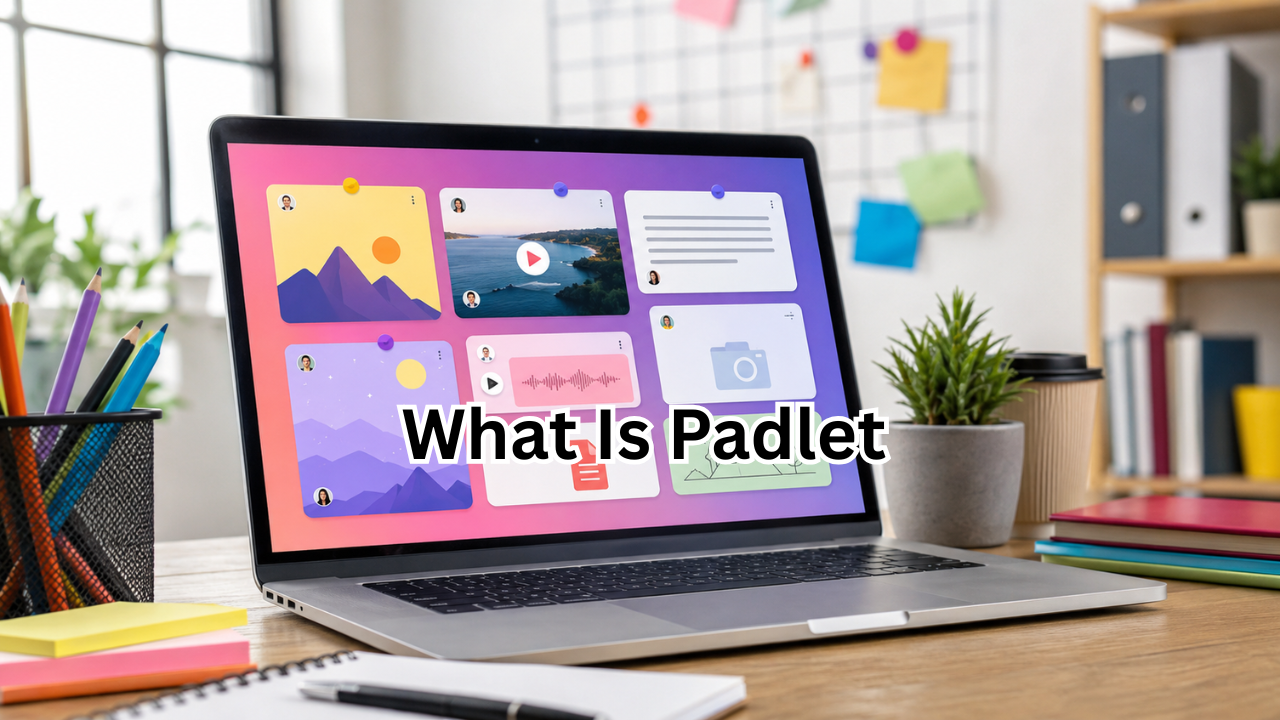
If you have ever seen a digital classroom where students share ideas, upload pictures, answer questions, or work together on the same online board, there is a good chance Padlet was involved. But what is Padlet, exactly, and why has it become popular with teachers, students, businesses, and everyday users?
Padlet is a visual collaboration platform designed to help people collect, organize, present, and share information in an interactive digital space. Instead of keeping ideas scattered across emails, documents, messaging apps, and presentations, users can bring different types of content together on one shared canvas or board.
According to Padlet, the platform is used by more than 40 million people worldwide. Its tools are designed for education, creative projects, professional collaboration, and personal use.
Whether you are a student trying to understand a new classroom tool, a teacher looking for an engaging activity, or someone interested in digital collaboration, this guide explains how Padlet works, what it can do, and why people use it.
What Is Padlet?
Padlet is an online visual collaboration tool that allows users to create digital spaces for collecting and sharing content. These spaces can contain text, images, videos, audio recordings, documents, links, drawings, and other types of media.
The simplest way to understand Padlet is to think of it as a digital bulletin board combined with a collaborative workspace.
Instead of writing an idea on a physical sticky note and putting it on a classroom wall, you can create a digital post and place it on a Padlet. Other people can then contribute to the same space, depending on the permissions selected by its creator.
Padlet offers two main types of collaborative spaces:
- Boards: Designed for collecting, organizing, and presenting information.
- Sandbox: A flexible digital canvas that can be used for whiteboards, lessons, activities, diagrams, and interactive projects.
Padlet also offers Padlet Arcade, which can be used to create interactive learning games.
How Does Padlet Work?
Using Padlet is relatively straightforward. A creator starts by making a board or Sandbox and then decides how it should look and who can access it.
Once the Padlet is ready, users can add posts. A post might contain a short written response, an image, a video, a document, a website link, or another attachment.
For example, a teacher could create a Padlet asking students to answer the question, “What did you learn today?” Each student could publish a response on the same board.
Padlet supports real-time collaboration, meaning multiple people can contribute to a board at the same time.
A Simple Padlet Workflow
The basic process looks like this:
- Create a Padlet board or Sandbox.
- Choose a layout or format.
- Add a title and instructions.
- Adjust privacy and visitor permissions.
- Share the Padlet link, QR code, or embed it on another website.
- Allow participants to read, comment, or create posts.
- Organize or present the collected information.
This makes Padlet useful even for people who have limited experience with complicated educational or collaboration software.

What Can You Put on a Padlet?
One of the biggest advantages of Padlet is its flexibility. It is not limited to plain text.
Depending on the setup, users can add:
- Text posts
- Photos and images
- Videos
- Audio recordings
- Documents
- Website links
- Drawings
- Maps
- Other multimedia content
Padlet’s help documentation says users can attach images, documents, links, videos, drawings, and recordings to posts. Posts can also be drafted and scheduled in supported situations.
This variety makes a Padlet more visually engaging than a traditional text document.
Padlet for Education
Education is one of the most common areas where Padlet is used.
Teachers can create an interactive space where students participate instead of simply reading information from a screen. Students can contribute individually or work together on group activities.
For example, a teacher might use Padlet for:
- Brainstorming before a lesson
- Collecting student questions
- Group projects
- Class discussions
- Exit tickets
- Research assignments
- Sharing study materials
- Student portfolios
- Photo and artwork galleries
- Collaborative presentations
- Polls and interactive activities
Padlet’s student guidance specifically highlights activities such as collecting ideas, sharing resources, running group projects, and creating galleries of student work.
Why Teachers Like Padlet
Traditional classroom discussions can sometimes be dominated by a small number of students. A collaborative board gives more students an opportunity to contribute.
A teacher can also control what participants are allowed to do. Depending on the settings, visitors may have permission to read content, comment, react, create posts, moderate contributions, or perform other actions.
This flexibility allows Padlet to work for both simple classroom activities and more structured projects.
Padlet for Students
For students, Padlet can make assignments more interactive.
Instead of submitting a traditional response, a student might be asked to upload an image, record an audio explanation, share a research link, or respond to classmates.
Students can access Padlet through a web browser or supported mobile devices. Padlet’s student documentation notes that an account is not always required to participate; whether students need to sign in depends on the particular Padlet and the requirements set by the teacher or organization.
This can make participation convenient, particularly when students are working from phones, tablets, laptops, or desktop computers.
Padlet for Business and Team Collaboration
Padlet is not limited to schools.
Businesses and teams can use collaborative boards to organize ideas, collect feedback, plan projects, share resources, and create visual presentations.
For example, a marketing team could create a Padlet containing campaign ideas, images, reference links, customer feedback, and project notes. Team members can then contribute to the same workspace instead of sending information through multiple separate channels.
Possible business uses include:
- Project brainstorming
- Team feedback
- Meeting notes
- Research collection
- Content planning
- Employee onboarding
- Resource libraries
- Creative workshops
- Internal presentations
The visual format can be particularly useful when a project involves many different types of information.
Popular Padlet Features at a Glance
| Feature | What It Does | Useful For |
|---|---|---|
| Boards | Collect and organize posts | Classes, projects, brainstorming |
| Sandbox | Provides a flexible digital canvas | Whiteboards, lessons, activities |
| Multimedia posts | Supports different types of content | Presentations and assignments |
| Real-time collaboration | Lets users contribute together | Group work and discussions |
| Comments and reactions | Allows interaction with posts | Feedback and engagement |
| Privacy controls | Controls who can access content | Schools, teams, private projects |
| Sharing tools | Provides links, QR codes, and embeds | Easy distribution |
| Export options | Allows content to be exported | Records and presentations |
| Mobile access | Works across supported devices | Learning and collaboration on the go |
Padlet’s current documentation describes several sharing, privacy, permission, and export options, including links, QR codes, embedding, and exports such as PDF, image, CSV, and Excel for supported Padlets.
Is Padlet Free?
Yes, Padlet offers a free option, although the exact features and limits depend on the current plan.
Padlet’s current help documentation describes the free Neon plan as providing three total Padlets, including Boards and Sandboxes, along with access to different layouts, unlimited posts within upload limitations, real-time collaboration, and other features. The documented free upload limit is 20 MB per attachment, with separate limits for recorded audio and video.
Paid plans can provide additional capacity and features. For example, Padlet’s documentation currently describes an individual Platinum plan with unlimited Padlets and larger upload limits.
Because subscription features can change, it is a good idea to check Padlet’s official pricing information before choosing a plan.
Is Padlet Easy to Use?
For most basic tasks, Padlet is designed to be beginner-friendly.
The interface focuses on creating a board, adding posts, and sharing the resulting space. Users do not generally need coding knowledge or advanced technical skills.
Creating a post, for example, involves selecting the post option, entering text or a title, adding an attachment if needed, and publishing it.
The learning curve can become slightly greater when you start using advanced privacy settings, different layouts, moderation tools, or organization features. However, beginners can start with a simple board and explore additional features as they become comfortable.
Padlet Privacy and Permissions
Privacy is an important consideration whenever you share information online.
Padlet provides multiple privacy and permission controls. Depending on the account and setup, a creator can restrict access, require a password, require visitors to log in, publish content to the web, or control what visitors are allowed to do.
Visitor permissions can include options such as:
- No access
- Reader
- Commenter
- Writer
- Moderator
- Admin
These controls are useful because not everyone needs the same level of access.
For example, a teacher may want students to be able to create posts but not change the board’s settings. A company may want employees to comment on a project without giving them administrative control.
Users should still avoid sharing sensitive personal information on collaborative platforms unless they understand the privacy settings and organizational policies involved. Padlet’s privacy policy specifically advises caution when sharing personal information.

What Are the Benefits of Padlet?
Padlet has several qualities that make it useful for collaboration and learning.
1. It Is Visual
Information is easier to explore when it is presented visually. Instead of reading a long list of responses, users can see ideas arranged on a shared board.
2. It Encourages Participation
A Padlet can give participants a simple way to contribute ideas, questions, media, or feedback.
3. It Supports Multimedia
Text is only one part of the experience. Images, videos, audio, documents, links, and other content can be incorporated into posts.
4. It Works for Different Types of Projects
The same platform can be used for a classroom brainstorm, a student portfolio, a business project, or a personal collection of ideas.
5. It Makes Sharing Simple
A Padlet can be shared through a link, QR code, or embedded into another website or digital environment.
What Are the Limitations of Padlet?
Although Padlet is versatile, it is not necessarily the best tool for every situation.
The free plan has limits, and users who need many boards or larger uploads may need a paid subscription.
Another consideration is organization. A large collaborative board can become crowded if participants add lots of unrelated content without clear instructions.
Privacy also needs attention. A creator should select appropriate access and permission settings before sharing a Padlet with a class, team, or the public.
For larger projects, it can help to establish simple rules, such as asking contributors to use specific titles, categories, or sections.
Padlet vs. a Traditional Document
A traditional document is often best when you need a structured piece of writing that follows a fixed sequence.
Padlet is different because it is built around visual organization and collaboration.
A document might be ideal for writing a report, while Padlet could be better for collecting research, brainstorming ideas, displaying media, or gathering contributions from several people.
The two tools can also complement each other. A team could use Padlet to collect information and then turn the best ideas into a formal document.
Who Should Use Padlet?
Padlet can be useful for a wide range of people, including:
- Teachers
- Students
- Schools
- Trainers
- Business teams
- Researchers
- Content creators
- Workshop organizers
- Families
- Anyone who wants a shared digital workspace
The best use case depends on what you want to accomplish. If your goal is simply to write a long document, another tool may be more appropriate. If your goal is to gather ideas and media from multiple people in an engaging visual format, Padlet can be a strong option.
Frequently Asked Questions About Padlet
What is Padlet used for?
Padlet is used to collect, organize, share, and collaborate on digital content. Common uses include classroom activities, brainstorming, group projects, presentations, feedback, portfolios, and team collaboration.
Is Padlet free to use?
Yes. Padlet currently offers a free Neon plan with a limited number of Padlets and defined upload limits. Paid plans provide additional capacity and features.
Do students need a Padlet account?
Not always. Depending on the teacher’s settings, students may be able to contribute using a shared link without creating an account. Some schools or teachers may require students to sign in.
Can Padlet be used on a phone?
Yes. Padlet is available through web browsers and supported iOS and Android devices, making it possible to participate from phones and tablets as well as computers.
Is Padlet private?
Padlet provides privacy and permission settings that allow creators to control access and visitor capabilities. However, privacy depends on the settings selected for each Padlet, so users should review those settings before sharing content.
Can you add videos and images to Padlet?
Yes. Padlet supports multimedia content, including images, videos, audio, documents, links, and drawings.
Final Thoughts
So, what is Padlet? In simple terms, it is a visual collaboration platform that gives people a shared digital space to collect ideas, communicate, organize information, and create interactive projects.
Its strongest advantage is flexibility. A teacher can use it as a classroom activity board, a student can use it for a project, and a business team can use it to brainstorm or organize resources.
Padlet is especially useful when collaboration and visual presentation matter. Rather than replacing every traditional productivity tool, it works best as a flexible space where people can bring ideas and different types of media together.
If you are looking for an easy way to make online collaboration more interactive, Padlet is certainly worth exploring
Also Read : Does Home Depot Take Apple Pay? What You Need to Know in 2026










Leave a Reply