

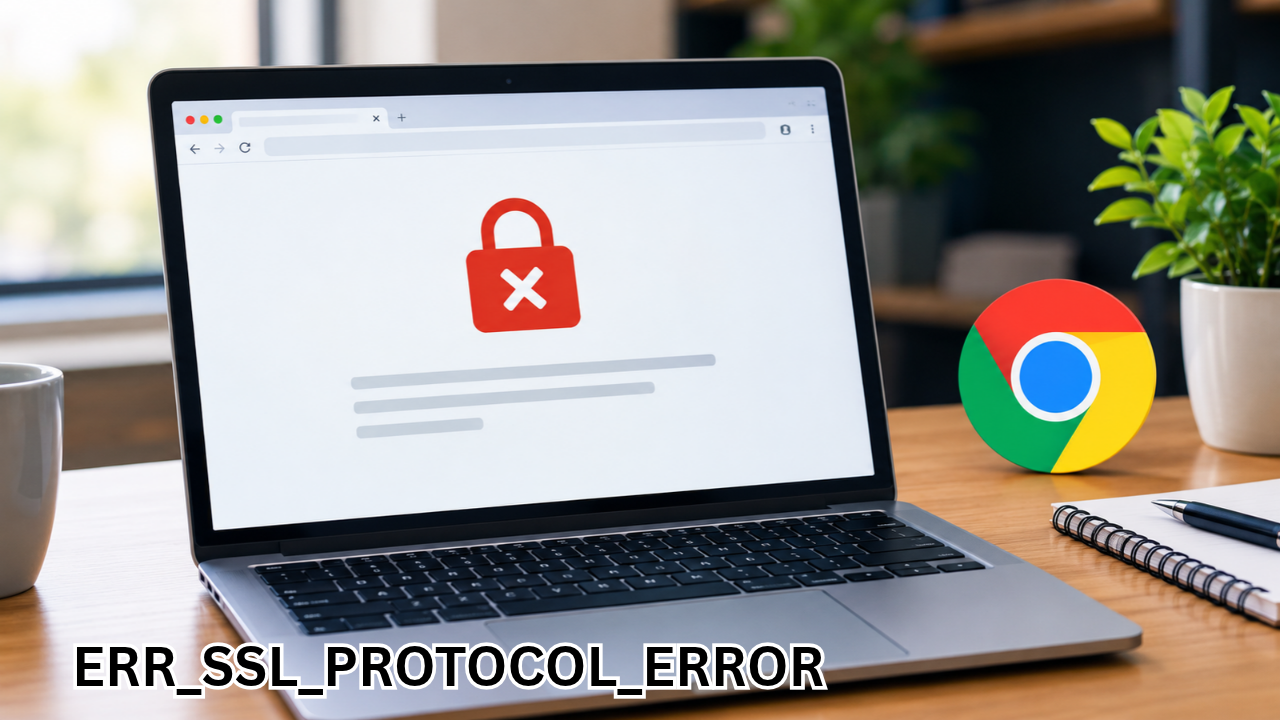
The ERR_SSL_PROTOCOL_ERROR message can be frustrating, especially when you need to access an important website and your browser refuses to load it. You might see this error while opening a website in Google Chrome, Microsoft Edge, or another browser. Sometimes the problem disappears after refreshing the page, but in other cases, it keeps returning.
This error usually indicates that the browser could not establish a secure connection with the website because something went wrong during the SSL/TLS communication process. The cause could be an incorrect system clock, corrupted browser data, antivirus interference, network configuration problems, or an issue with the website’s security certificate or server.
The good news is that many instances of ERR_SSL_PROTOCOL_ERROR can be resolved with a few straightforward troubleshooting steps. You do not necessarily need advanced technical knowledge or specialized software to get started.
In this guide, you’ll learn what the error means, why it occurs, and how to fix it on Windows, macOS, and other common browsing environments. You’ll also discover how website owners can identify and resolve server-side problems that prevent visitors from establishing secure connections.
What Is ERR_SSL_PROTOCOL_ERROR?
ERR_SSL_PROTOCOL_ERROR is a browser error that occurs when a secure HTTPS connection cannot be established successfully. SSL stands for Secure Sockets Layer, an older security protocol that has largely been replaced by Transport Layer Security (TLS).
Although people still commonly use the term SSL, modern websites generally rely on TLS to encrypt communication between a browser and a web server.
When you visit an HTTPS website, your browser and the server perform a process called a TLS handshake. During this process, they negotiate security settings, verify the server’s certificate, and establish the information needed to protect the connection.
If this process fails, the browser may display ERR_SSL_PROTOCOL_ERROR instead of loading the page.
This message does not automatically mean that your computer has a virus or that the website has been hacked. It simply indicates that the browser could not complete the secure connection as expected.
Common Causes of ERR_SSL_PROTOCOL_ERROR
Understanding the potential cause can help you choose the right solution instead of trying random fixes.
| Possible cause | How it affects the connection | Recommended action |
|---|---|---|
| Incorrect date and time | Certificate validity checks may fail | Enable automatic date and time |
| Corrupted browser cache | Outdated or damaged site data may interfere | Clear cached files and relevant cookies |
| SSL/TLS configuration issues | Incompatible protocol settings can prevent a handshake | Restore recommended security settings |
| Antivirus or firewall interference | HTTPS inspection may disrupt secure connections | Check security software settings |
| VPN or proxy problems | Network routing or filtering may interfere | Temporarily test another trusted connection |
| Outdated browser | Older software may not support current security requirements | Update the browser |
| DNS or network issues | The browser may reach the wrong server or encounter connection problems | Flush DNS or restart networking equipment |
| Website certificate problems | The server may present an invalid, expired, or incomplete certificate | Contact the website administrator |
| Server misconfiguration | HTTPS settings, ports, or protocol versions may be incorrect | Review the server’s TLS configuration |
The same error can have different causes on different devices. If only one website fails, the problem may be specific to that website. If many HTTPS websites fail, your browser, device, security software, or network deserves closer attention.
How to Fix ERR_SSL_PROTOCOL_ERROR
Try the following solutions in order. Start with the simplest checks and move to advanced troubleshooting only if the error continues.
1. Check Your Internet Connection
A weak or improperly configured network can interfere with secure website connections. Before changing browser settings, check whether the issue affects one website or several.
Follow these steps:
- Open another website that uses HTTPS.
- Refresh the page showing the error.
- Restart your Wi-Fi router if several websites fail.
- Connect your computer to another trusted network, if available.
- Check whether the website works on another device.
If the website works on mobile data but not on your usual Wi-Fi connection, your router, internet service provider, or network configuration may be involved.
This quick test helps you determine whether to focus on your device or investigate a network-related problem.
2. Correct Your Computer’s Date and Time
An incorrect system clock can prevent browsers from validating security certificates properly. This is particularly common on computers with automatic time synchronization disabled.
On Windows:
- Open Settings.
- Select Time & language.
- Click Date & time.
- Enable Set time automatically.
- Enable automatic time zone selection if appropriate.
- Restart your browser and revisit the website.
On macOS:
- Open System Settings.
- Select General, then Date & Time.
- Enable automatic date and time settings.
- Confirm that the time zone is correct.
After correcting the clock, reload the affected website. If the error was caused by an incorrect date or time, this may resolve it without additional changes.
3. Clear Browser Cache and Cookies
Your browser stores cached files and cookies to make websites load faster and remember your preferences. Occasionally, outdated or corrupted browsing data can contribute to loading problems.
Clearing this data is a useful troubleshooting step when a website fails repeatedly.
In Google Chrome:
- Open Chrome.
- Press
Ctrl + Shift + Deleteon Windows or Linux. On macOS, pressCommand + Shift + Delete. - Choose a suitable time range, such as All time.
- Select Cached images and files.
- Select Cookies and other site data if necessary.
- Click Delete data or Clear data, depending on your browser version.
- Close and reopen the browser.
Keep in mind that deleting cookies can sign you out of websites and remove certain saved preferences. You can begin by clearing the cache and clear cookies only if needed.
Google’s official Chrome troubleshooting guide also recommends clearing browsing data when investigating connection and loading errors.
Google Chrome Help
4. Open the Website in Incognito Mode
Browser extensions can sometimes interfere with requests, website scripts, or network connections. Incognito mode provides a quick way to test whether your usual browser environment contributes to the problem.
To try it in Chrome:
- Click the three-dot menu in the upper-right corner.
- Select New Incognito window.
- Enter the affected website’s address.
- Check whether the page loads successfully.
You can also use Ctrl + Shift + N on Windows or Linux.
If the website works in Incognito mode, an extension or existing browsing data may be responsible. However, remember that extensions can be allowed to run in Incognito mode, so this test is not conclusive by itself.
To investigate further, open chrome://extensions/, disable your extensions temporarily, and test the website again. Re-enable them one at a time to identify the source of the problem.
5. Update Your Browser
Older browser versions may have compatibility issues with modern security configurations. Updates can also include security fixes and improvements to connection handling.
To update Google Chrome:
- Open Chrome.
- Click the three-dot menu.
- Select Help.
- Choose About Google Chrome.
- Allow Chrome to check for and install available updates.
- Relaunch the browser if prompted.
If you use Microsoft Edge, Firefox, or Safari, check for updates through the browser’s relevant settings or your operating system’s software update tools.
Also install available operating system updates. An outdated system may have certificate or security component issues that affect HTTPS connections.
6. Check Your Antivirus and Firewall Settings
Some security products inspect encrypted web traffic to identify potentially harmful connections. This feature may be called HTTPS scanning, SSL inspection, or encrypted connection scanning.
In certain configurations, that inspection can interfere with the TLS handshake and trigger connection errors.
To test whether security software is involved:
- Open your antivirus application.
- Look for web protection or encrypted connection scanning settings.
- Check whether the affected website is being blocked.
- Review security logs for connection-related warnings.
- If necessary, follow the vendor’s instructions for a brief, controlled test.
Avoid leaving antivirus protection or your firewall disabled. If the error disappears when encrypted traffic inspection is temporarily disabled, update the security software or contact its provider for a safer long-term fix.
On a work or school network, contact the IT administrator before changing managed security settings. Google also identifies antivirus HTTPS protection as a possible source of certain browser security errors.
Google Chrome Help
7. Disable a VPN or Check Your Proxy Settings
A VPN or proxy can change how your device connects to websites. Depending on its configuration, it may introduce connection filtering, certificate inspection, or routing problems.
If you use a VPN, disconnect it briefly and try loading the website through your normal trusted connection. If you use a proxy, confirm that its settings are correct.
On Windows, you can review proxy configuration under Settings and then Network & internet.
If disabling the VPN resolves the error, update the VPN application or contact its provider. Do not assume that every VPN is responsible for SSL errors; this is simply one way to narrow down the cause.
A VPN may also help diagnose whether a network or internet service provider is interfering with the connection, but it is not a universal fix.
8. Clear the SSL State on Windows
Windows maintains security-related connection information that may sometimes be worth refreshing during troubleshooting.
To clear the SSL state:
- Press
Windows + R. - Type
inetcpl.cpland press Enter. - Open the Content tab in Internet Properties.
- Click Clear SSL state, if the option is available.
- Restart your browser and test the website again.
The exact options available can vary by Windows version and browser configuration. Clearing the SSL state will not repair an expired website certificate or a broken server configuration, so this step is most useful when the problem is local to the computer.
9. Flush the DNS Cache
The Domain Name System (DNS) translates website names into IP addresses. If your computer has outdated DNS information or encounters a DNS-related network problem, refreshing the local cache may help.
On Windows:
- Open the Start menu.
- Search for Command Prompt.
- Select Run as administrator if required.
- Enter the following command:
ipconfig /flushdns- Press Enter.
- Restart your browser and test the website.
You should see a message confirming that the DNS resolver cache was flushed.
This command does not directly repair SSL certificates. However, it can help when a related name-resolution problem is contributing to the connection failure.
10. Restore Recommended TLS Settings
TLS is the modern protocol used to secure HTTPS communication. If security settings have been changed manually, your browser and the website may fail to negotiate a compatible connection.
On Windows, open Internet Properties by entering inetcpl.cpl in the Run dialog. Depending on your system, the Advanced tab may include security options for TLS.
If you have changed these settings previously, restore the recommended defaults rather than enabling obsolete protocols. Keep your browser and operating system updated.
Do not enable outdated SSL or TLS versions simply to make a website load. Older protocols may expose your connection to security weaknesses.
If the problem affects a managed device, let your IT administrator review the configuration. On a website you own, the server’s supported TLS versions and cipher suites may need investigation instead.
11. Restart Your Router and Computer
Sometimes the simplest solution is the most effective. Restarting your devices can refresh network connections and clear temporary problems.
Try the following:
- Close and reopen your browser.
- Restart your computer.
- Restart your router according to the manufacturer’s instructions.
- Reconnect to your usual network.
- Test the website again.
If other websites work normally but one particular domain still shows ERR_SSL_PROTOCOL_ERROR, further local troubleshooting may not help. The website itself may have a certificate or server configuration issue.
How to Fix ERR_SSL_PROTOCOL_ERROR on a Website You Own
If you manage a website and visitors report this error, the problem may be related to the server rather than their browsers.
Start by checking the following areas.
Verify the SSL/TLS Certificate
Confirm that the certificate is valid, has not expired, covers the requested domain, and includes the necessary intermediate certificates.
If you recently configured HTTPS or changed DNS records, verify that the certificate has been issued and activated for the correct hostname.
Check HTTPS and Server Configuration
Make sure the server accepts HTTPS connections on port 443 and that its TLS settings are compatible with modern browsers.
Review recent changes to your web server, hosting platform, CDN, reverse proxy, or load balancer. A configuration change can cause secure connections to fail even when the website was previously working.
Review CDN and Proxy Settings
If your website uses a content delivery network or reverse proxy, verify that its SSL/TLS mode matches the configuration of your origin server.
For example, a mismatch between the CDN’s expected origin connection and the server’s actual configuration can prevent requests from completing successfully.
Cloudflare’s SSL/TLS troubleshooting documentation provides additional guidance on certificate activation, protocol compatibility, and network interference.
Cloudflare SSL/TLS docs
Test the Connection and Review Logs
Use an SSL/TLS diagnostic tool to inspect the certificate chain and supported protocols. Check server logs for handshake failures, incorrect certificate paths, or connection errors.
If the issue affects only certain users, compare their browser versions, operating systems, networks, and security software. These details can help distinguish a server-side problem from network interference.
Avoid weakening security settings as a permanent workaround. The goal is to establish a compatible, correctly configured HTTPS connection.
How to Prevent ERR_SSL_PROTOCOL_ERROR in the Future
Although you cannot prevent every SSL/TLS connection issue, a few good practices can reduce the likelihood of encountering this error.
- Keep your browser updated: Install updates regularly to maintain compatibility with modern security standards.
- Use automatic time synchronization: Ensure your computer’s date, time, and time zone are correct.
- Maintain updated security software: Outdated antivirus products and network filters can sometimes interfere with secure connections.
- Avoid unnecessary security changes: Do not enable obsolete protocols or ignore certificate warnings just to access a website.
- Monitor your website’s certificate: If you manage a domain, configure certificate renewal reminders and verify that renewals complete successfully.
- Check website configuration after changes: Test HTTPS after modifying DNS records, hosting settings, CDN configuration, or server software.
These habits help maintain reliable browsing and reduce avoidable connection problems.
Frequently Asked Questions (FAQs)
1. What does ERR_SSL_PROTOCOL_ERROR mean?
ERR_SSL_PROTOCOL_ERROR means your browser could not establish a secure HTTPS connection because the SSL/TLS communication process failed. Possible causes include incorrect device settings, security software interference, incompatible protocols, or a website’s certificate or server configuration.
2. How do I fix ERR_SSL_PROTOCOL_ERROR in Chrome?
Start by refreshing the page, checking your computer’s date and time, and opening the website in Incognito mode. If the problem continues, clear your browser cache, update Chrome, check extensions, and investigate VPN, proxy, or antivirus settings. If only one website fails, the issue may be on its server.
3. Can an incorrect date and time cause an SSL protocol error?
Yes. An incorrect system clock can interfere with certificate validation because browsers check certificate validity dates. Enable automatic date and time settings, confirm your time zone, and try loading the website again.
4. Why does ERR_SSL_PROTOCOL_ERROR appear on only one website?
The website may have an expired or incorrectly configured certificate, an incomplete certificate chain, or incompatible TLS settings. It is also possible that your browser, VPN, or network has a problem communicating with that specific domain. Testing the website on another device or trusted network can help narrow down the cause.
5. Is ERR_SSL_PROTOCOL_ERROR dangerous?
The error itself does not mean your device is infected or that the website has been hacked. It indicates that the browser could not establish the expected secure connection. You should avoid bypassing security warnings or entering sensitive information when a secure connection cannot be verified.
6. How do I fix ERR_SSL_PROTOCOL_ERROR on my own website?
Check that your SSL/TLS certificate is valid and covers the correct domain. Verify your HTTPS configuration, supported TLS versions, certificate chain, and any CDN or reverse proxy settings. Review server logs and run a TLS diagnostic test to identify handshake failures.
Final Thoughts
The ERR_SSL_PROTOCOL_ERROR message can interrupt your browsing, but it does not always indicate a serious technical problem. In many cases, checking your system clock, clearing browser data, updating your browser, or investigating security software can help restore the connection.
The most effective approach is to identify where the problem originates. If multiple websites fail, focus on your device, browser, and network. If only one website is affected, the issue may involve that website’s certificate or server configuration.
Website owners should pay particular attention to certificate validity, HTTPS configuration, and TLS compatibility. Regular maintenance can help prevent secure connection failures and provide visitors with a more reliable browsing experience.
By following these troubleshooting steps, you can work toward resolving ERR_SSL_PROTOCOL_ERROR safely and understand what to investigate if the error returns.
Also Read : MSN Weather: Your Complete Guide to Forecasts, Radar Maps, and Daily Weather Updates











Leave a Reply